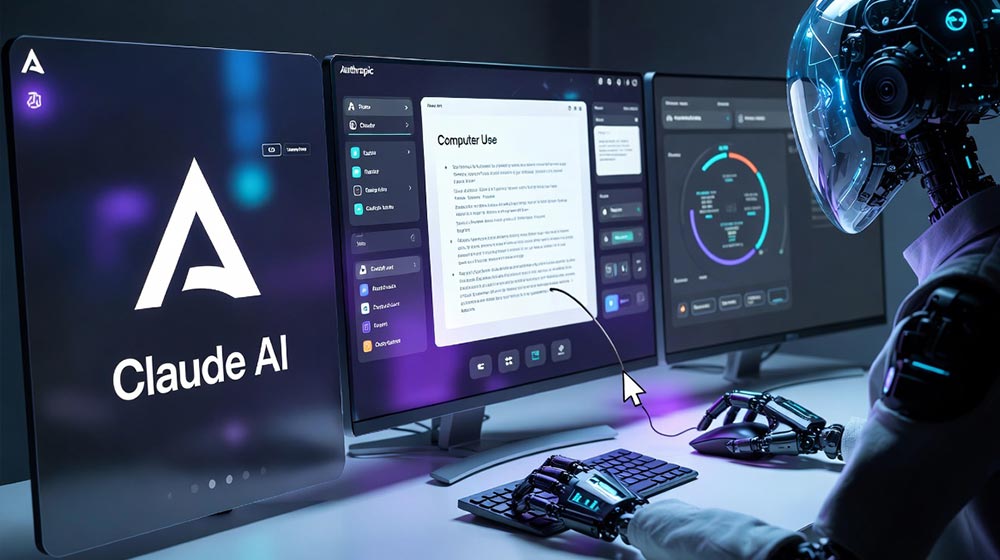
Claude AI has introduced one of the most powerful features in the AI world — Computer Use. This beta tool allows Claude (especially Claude 3.5 Sonnet and newer models) to control your computer like a human assistant. It can view your screen, move the mouse, click buttons, type text, open apps, browse the web, fill forms, edit files, and automate repetitive desktop tasks.
How Claude’s Computer Use Works
Unlike regular chatbots, Claude doesn’t have direct access to your system. Instead, it uses a special “computer use” tool that works in a loop:
- Takes screenshots of your screen to “see” what’s happening
- Analyzes the screen and decides the next action
- Executes mouse movements, clicks, typing, keyboard shortcuts, or drags
- Repeats the process until the task is completed
You remain in full control — you can watch, supervise, or stop Claude at any time.
This feature is especially useful for tasks that don’t have APIs, such as working with traditional desktop apps, spreadsheets, browsers, or custom software.
Latest Updates (Early 2026)
- Now available on Windows (previously limited to macOS)
- Better integration with the Claude Desktop App
- Improved support through Claude Cowork (for general tasks) and Claude Code (for developers)
- Can connect with apps like Slack and Google Workspace
- Mobile task assignment via Dispatch (assign tasks from your phone)
How to Use Claude Computer Use
1. Through Claude Desktop App (Easiest Method)
- Download the latest Claude app from claude.ai
- Go to Settings → General and enable “Computer Use”
- Grant permission when prompted
- Simply describe your task in plain English
Example tasks you can give:
- “Batch resize all photos in this folder and send them to my phone”
- “Open Excel, organize this sales data, create a chart, and email the report”
- “Fill this online form using the details from my notepad”
2. Through Claude Code (For Developers) Useful for coding tasks, running tests, navigating IDEs, and automating development workflows.
3. Through API (Advanced) Developers can integrate the computer-use tool into their own applications using the Anthropic API.
Requirements
- Pro or Max subscription required (not available on free tier)
- Permission is given per session and can be revoked anytime
- Works best with clear, step-by-step instructions
Popular Use Cases
- Automating repetitive data entry
- Batch processing photos and files
- Web scraping and form filling
- Organizing spreadsheets and reports
- Remote task execution from your phone via Dispatch
- Automating workflows across multiple desktop apps
Limitations (Still in Beta)
- Can be slow on complex tasks
- May occasionally misclick small buttons
- Not 100% accurate yet — always supervise important or sensitive work
- Performance depends on internet speed and screen clarity
Claude’s Computer Use is a big step toward truly helpful AI agents that can work inside your computer. While it’s still in beta and not perfect, it already saves significant time on repetitive GUI-based tasks.
As the feature matures with newer models and updates, it could become one of the most practical AI tools for both professionals and everyday users.