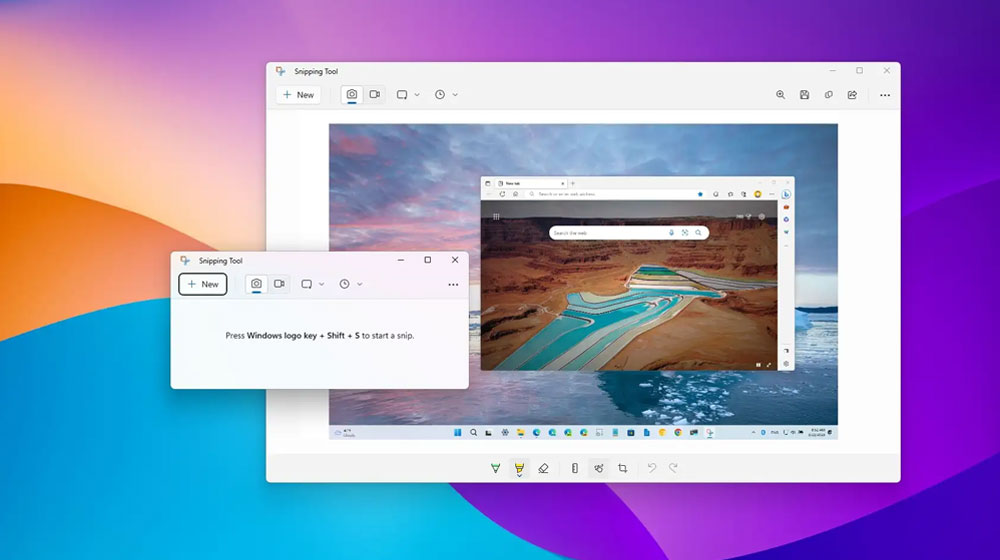
If you’ve ever struggled to copy text from an image, PDF, screenshot, or even a QR code, Windows 11’s built-in Snipping Tool just became a game-changer. Thanks to its powerful OCR (optical character recognition) feature called Text Actions, you can now extract and copy text instantly — no extra apps, no uploads, and zero privacy worries.
Two Super-Fast Ways to Grab Text
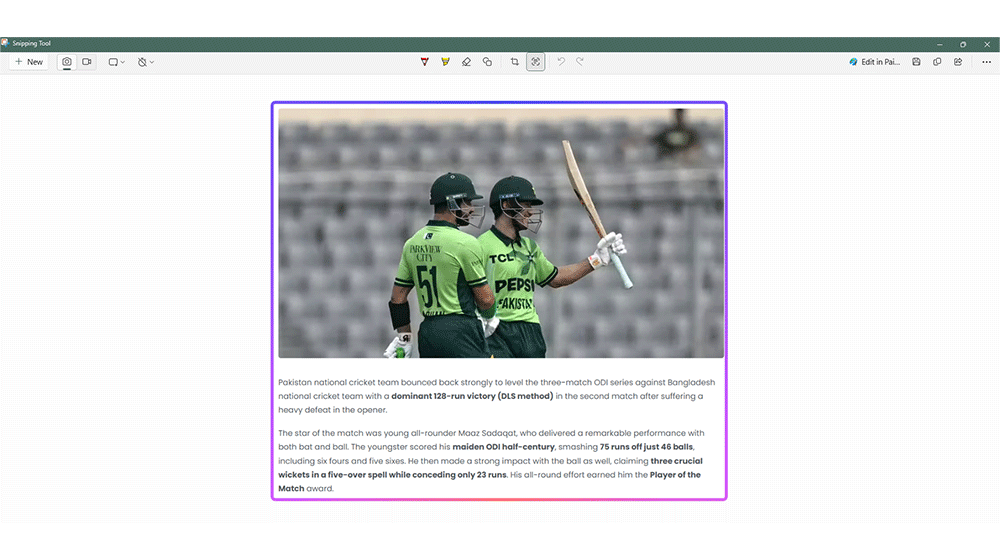
Method 1: Classic Screenshot + Text Actions
- Open Snipping Tool (or press Win + Shift + S).
- Capture the area with text.
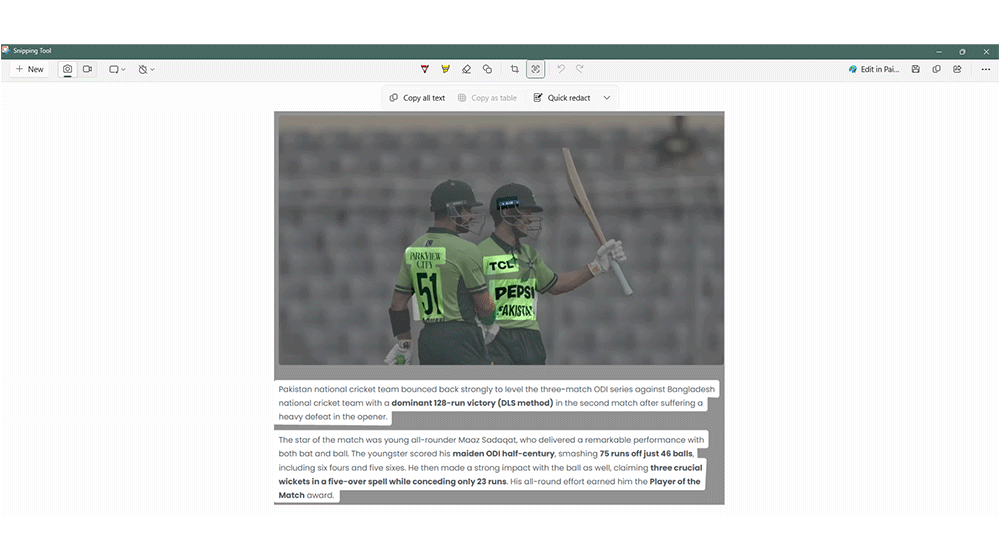
- Click Text Actions in the toolbar.
- The tool instantly highlights all readable text.
- Select what you want or hit Copy all text — done!
Method 2: Lightning Shortcut (My Favorite) Press Win + Shift + T to launch Text Extractor directly. Drag over any text on your screen (webpage, image, PDF, etc.). Click Copy all text and paste anywhere. No screenshot saved — pure speed!
Handy Extra Features
- Quick Redact: Automatically blacks out phone numbers and emails before you share the screenshot. Perfect for sensitive docs.
- Copy as Table: Extracts spreadsheet-style data cleanly.
- QR Code Magic: Scans QR codes and copies the URL or text inside.
Everything runs 100% on your PC, so it’s blazing fast and keeps your data private.
Small Limitations to Know
It’s not perfect with messy handwriting or very low-resolution/blurry images (you might get an “image too small” error). Formatting isn’t preserved either — you get clean plain text. For heavy-duty or handwritten work, dedicated OCR apps still win.
Final Verdict
For everyday use — error messages, image text, scanned receipts, or quick PDF grabs — the Windows 11 Snipping Tool is now my go-to. It’s already installed, free, and ridiculously convenient.
Next time you see unselectable text, just hit Win + Shift + T and thank Microsoft. Try it today and you’ll wonder how you ever lived without it! 🚀